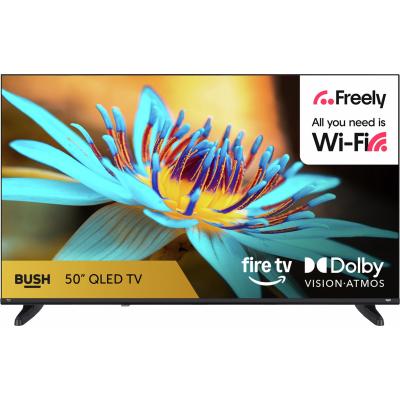
Bush 50 Inch 50QSF26 Smart 4K UHD HDR QLED Freely Fire TV
731/2564
Product details
- Brand: Bush
- Catalogue number: 731/2564
- Manufacturer's number: 50QSF26
Argos Technical Support
 UK:
UK:
 Eire:
Eire:

Argos Troubleshooter
Resolve problems quickly with this easy-to-use tool.
Email me this page
Enter your email address to have this page emailed to you *
FAQs
Common issues and fixes:
Source
Check you are on the correct TV source to match the connection. If the device is in HDMI1 the TV source needs to be HDM1.
HDMI lead
- Try a HDMI handshake, disconnect the lead and swap ends.
- Try a new HDMI lead.
- Try a different HDMI port.
- Check the connection feels secure.
Reset the device
- Try a power flush or factory reset the Games Console and TV.
- Power flush: Unplug the device from power. Hold down the manual power button for 30 seconds. Plug back in and reconnect.
Check software
- Check the TV software is up to date and the console software is compatible with the TV.
- Most TV software can be found in settings>system>software. For specific guidance refer to the user manual.
PS5
1. Head to the PS5 Home.
2. Select” Settings” from the top-right or using the Game Bar.
3. Choose “Screen and Video.”
4. Select “Video Output.”
5. Choose “VRR” and set it to “Disabled.”
Xbox One
1. On your Xbox One console, go to the "Settings" menu.
2. Select the "Display & sound" tab.
3. Select the "Video output" tab.
4. Scroll down to the "Advanced video settings" section.
5. Untick the "Allow variable refresh rate" option.
For more in-depth guidance read our Blog here.
The most common causes for frequent buffering include: -
- A slow or unstable internet connection.
- A poor-quality Wi-Fi signal.
- Network congestion or high bandwidth usage.
- Outdated apps or an old device.
- Streaming in higher video quality than your internet connection can handle.
Try the following steps: -
- Pause the video/game for a few seconds to let it build up enough data to resume.
- Lower the streaming quality from 1080p to 720p.
- Close other apps or devices to reduce bandwidth usage.
- Use a wired ethernet connection.
- Move close to your router if you are using a Wi-Fi connection.
- Restart your router.
- Check if there is an update for the streaming app or your devices firmware.
Below is a general guide:
- Standard Definition: 3-4 Mbps.
- High Definition: 5-8 Mbps.
- 4K/Ultra HD: 15-25 Mbps.
Possible reasons for your streaming still buffering are: -
- Inconsistent internet speed.
- Wi-Fi signal keeps dropping.
- The ISP (Internet service provider) or streaming service is overloaded.
- Device performance issues (E.g., overheating, low memory).
Try the following: -
- Run an internet speed test using for example Speedtest.net.
- Try streaming on a different device.
- Use a different streaming platform (E.g., YouTube).
If the TV is disconnecting from the internet, we would recommend trying the following:
- Check that the TV is not situated too close or too far from the router, and that there are no obstructions that may be physically blocking the signal.
- If multiple variations of your router appear in the network selection screen, select the one which does not have 5GHz at the end.
- Reset the Wi-Fi router.
- Check if other devices are experiencing the same issue, or if it happens at a particular time. This may suggest there is an event triggering this loss of connection.
- To discover what channels are available on Freely check here
- No. Freely does not require an aerial. It delivers live TV channels over your internet connection. (A minimum internet speed of 10Mbps is recommended).
- Freely streams channels via your broadband (Wi‑Fi or Ethernet) instead of using a traditional broadcast signal like Freeview.
- With an aerial plugged into your TV you will be able to watch traditional Freeview Channels. This can also be a backup if your internet is down.
If you have no channels or no signal on your TV, check the following:
- If you are viewing TV channels from a TV aerial or set top box, ensure that all the necessary cables and leads are properly connected.
- Check that the aerial lead is not damaged.
- Re-tune your TV channels (For more information, see the Tuning your TV topic in the Digital Guide on this page).
- Ensure the aerial is compatible for digital signal and is installed correctly.
- If you are viewing Freely internet channels with no TV aerial or set top box connected, check the network status (For more information, see the How to check the network status topic in the Digital Guide on this page).
- Yes, you can use your TV with no internet connection. You will need to ensure there is a standard digital TV aerial connected.
- You will only receive Freeview channels and have no access to your Amazon account, online streaming, catch up, on demand TV or Freely channels.
- To enjoy live streaming, catch-up and on demand content a minimum internet speed of 10Mbps is recommended.
Questions & answers
How-to videos
-
How to change your plugs fuse
-
How to register your product
-
How to do a Power Reset
-
How to stop your TV changing volume automatically
-
Using with Ring Doorbell
-
Understanding TV Wall Mounts
-
How to solve problems with a HDMI connection
-
How to Solve Signal Issues With Your Television
-
How to Solve Wi-Fi Connectivity Issues on Your TV
-
What to do if you TV loses signal
-
What is HDMI ARC?
-
How to Screen Mirror on a Bush Fire TV
-
How to Perform a Channel Scan on your Bush Fire TV with Freely - New 2026 Models
-
How to Navigate Freely on Your Bush Fire TV - New 2026 Models
-
How to Reset Your Bush Fire TV - New 2026 Models
-
How to Setup a Bush Fire TV - New 2026 Models
Interactive Help
-
Click here to view an interactive step-by-step guide for your product.
-
Argos Troubleshooter
Resolve problems quickly with this easy-to-use tool.


Returns policy
If you need advice or support for your product, please in the first instance contact the support provider using the number on this support page.
If you still need to return your product then please visit our most up to date returns policy here.