HUAWEI Band 11 Smart Watch - Purple
813/0965
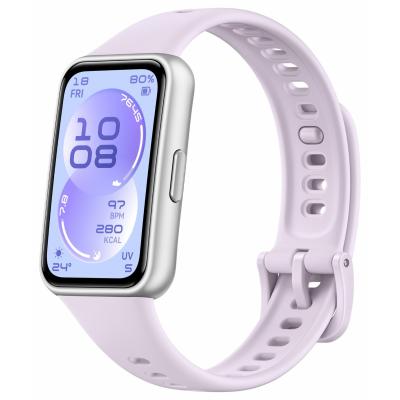
Product details
- Brand: Huawei
- Catalogue number: 813/0965
- Manufacturer's number: 55020GVM
Huawei Technical Support
 UK:
 Eire:
Email me this page
Enter your email address to have this page emailed to you *
Useful links
Online supportFAQs
Bluetooth connection will automatically fail when the distance between your wearable device and your phone exceeds the connection range. For example, when your phone and watch are in different rooms, Bluetooth connection may fail.
Make sure that your device and phone are within the connection range, without strong sources of interference in between, such as microwaves, multiple Bluetooth devices, multiple routers, or multiple Wi-Fi networks. Then, check whether the issue persists.
If raise to wake does not work on your watch/band, check the following:
Check that “Raise to wake” is enabled:
- This feature is enabled by default on the HUAWEI WATCH 3/4 Series watches. To check this, go to Settings > Accessibility features > Gestures > Raise to wake on your watch.
- This feature is enabled by default on the HUAWEI WATCH 5 Series watches. To check this, go to Settings > Display & brightness > Raise to wake on your watch.
- Other watches/bands, open the Huawei Health app, touch Devices and then your device name to enter the details screen, touch Device settings, and enable Raise to wake. If you are using the HUAWEI Band 4e, enable both Raise to wake and Rotate to switch screen.
Disable do not disturb mode:
- Certain watches/bands do not support the Raise to wake feature in Do not disturb mode, you can swipe down on the watch home screen to open the shortcut menu and disable Do not disturb.
Restart your watch/band:
- If the issue persists, restart your watch/band, and then connect it to the Huawei Health app again. If your watch/band cannot be restarted, press and hold the side button for at least 12 seconds to force a restart.
- Press the Up button on your watch and go to Settings > Display & brightness or Settings > Display.
- If Automatic is enabled, disable it.
- Touch Brightness to adjust the screen brightness.
- The accelerometer is used to count steps. Sometimes, your watch/band may mistake bumps in the road or arm movements when cycling, driving, riding a car, or washing dishes as steps, causing the step count to increase.
- Your watch/band may fail to record your steps in real time if you walk a few steps and suddenly stop, or your walking posture is not recognised. However, these steps will eventually be tallied in the total step count.
- Step counting principles, hardware, software, and other configurations may vary between products and brands, causing the step counts from HUAWEI watches/bands to differ from those from products of other brands.
Both the watch/band and the phone use the accelerometer to count steps. The sensor identifies steps based on movement and acceleration in different directions.
Since phones tend to be placed in pockets or bags, the sensor mainly detects the change of acceleration of gravity (vertically). However, the watch/band is usually worn on the wrist, and the sensor mainly detects arm movement, which is more accurate and scientific. These different detection modes may lead to different step counts.
The Huawei Health app intelligently merges the data recorded by the watch/band and phone that have been logged in to with your HUAWEI ID, whereas the watch/band displays only the step count it records.
If your smart watch won’t charge, check the following:
- Check that the charger and cable are properly connected and switched on at the mains.
- If you are using wireless charging, ensure the charger is compatible with the watch and that the watch is properly aligned on the charger.
- Inspect charging contacts on the watch for dirt or debris.
If your smart watch won’t turn on, check the following:
- The battery maybe be flat, charge your smart watch for at least 30 minutes.
- Try a force restart (check your smart watches instructions for this procedure).
To help improve battery life on your smart watch, try the following:
- Reduce the screen brightness.
- Reduce the screen timeout duration.
- Disable any unnecessary features such as GPS, Wi-Fi and Always-On Display.
- Turn off the continuous heart rate monitoring.
- Limit the amount of background apps and notifications.
- Check if your smart watch has a firmware update, as updates can at times fix known battery draining issues.
Check your smart watch instruction manual for the above procedures.
If your smart watch won’t connect to my phone, check the following:
- Ensure that Bluetooth is enabled on your phone and smart watch.
- Check that your smart watch has the option to connect to your smart watch.
- Ensure that the phone is within range of your smart watch.
- Restart the smart watch and phone.
- Unpair and re-pair the smart watch to your phone using the smart watches app.
Check your smart watch instruction manual for the above procedures.
If you are not receiving notifications on your smart watch, check the following:
- Verify notification permissions in the phone’s settings.
- Ensure “Do Not Disturb” or “Focus Mode” is off.
- Confirm the relevant apps have notifications enabled in the smart watch app.
- Check that Bluetooth connection between the smart watch and phone is stable.
- Try restarting both devices.
Check your smart watch instruction manual for the above procedures.
If the touchscreen is unresponsive on your smart watch, try the following:
- Clean the screen with a non-abrasive soft, dry cloth.
- If using gloves removes them, unless your smart watch has glove mode.
- Restart the smart watch (check your smart watch instruction manual for this procedure).
- If the touchscreen remains unresponsive, force restart your smart watch (check your smart watch instruction manual for this procedure).
If your smart watch is not syncing data, try the following:
- Open the smart watch app and try manually syncing.
- Ensure that Bluetooth is enabled on both devices.
- Check that app permissions, such as location and background activity, are enabled on your phone for the smart watch.
- Restart both devices.
- Try logging out and back into the smart watch app on your phone.
Check your smart watch instruction manual for the above procedures.


Returns policy
If you need advice or support for your product, please in the first instance contact the support provider using the number on this support page.
If you still need to return your product then please visit our most up to date returns policy here.