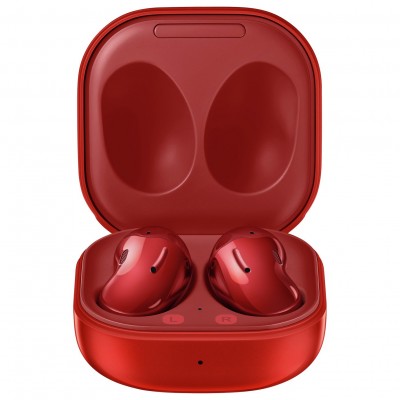
Samsung Galaxy Buds Pro True Wireless Earbuds-Phantom Violet
809/0878

Product details
- Brand: Samsung
- Catalogue number: 809/0878
- Manufacturer's number: 8090878 - TW VIOLET
Samsung Support
 UK:
UK:
 Eire:
Eire:
Email me this page
Enter your email address to have this page emailed to you *
FAQs
All Bluetooth devices need to pair before they can connect and transfer information. On an Android device, the SmartThings and Galaxy Wearable apps make it quick and easy to connect your devices. On other devices you will need to pair your Galaxy Buds manually. Once your devices are paired they will remember the connection and connect automatically the next time they are used.
Connecting to a Samsung device
- Place the earbuds into their corresponding slots in the charging case
- Close the charging case
- Open the charging case
- The earbuds will automatically enter pairing mode and a pop-up window will appear on your device.
- Tap Connect on the pop up window
- Follow the on-screen instructions to finish connecting.
Once your Galaxy Buds have been connected, they will automatically try and connect to your device everytime you open the charging case while the earbuds are inside.
Connecting to a non-Samsung Android device
- Open the Play Store and install the Galaxy Wearable app
- Place the earbuds into their corresponding slots in the charging case
- Close the charging case
- Open the charging case
- The earbuds will automatically enter pairing mode
- Open the Galaxy Wearable app and follow the on-screen instructions to finish connecting
Lights on the charging case show the battery and charging status of your earbuds and case. The earbud's battery indicator light is inside the charging case, between your earbuds. The charging case's battery indicator light is on the front of the charging case.
- Continuously red - Charging
- Continuously green - Fully charged
- Flashes red - Charging block because of abnormal temperatures
- Red (stays on for five seconds) - Battery power is lower than 30%
- Yellow (stays on for five seconds) - Battery power is between 30% and 60%
- Green (stays on for five seconds) - Battery power is higher than 60%
While using your Galaxy Buds, you can use the touchpad controls to control your music and calls without needing to touch your phone. The touchpad controls differ depending on what you are using your Galaxy Buds for.
Music controls:
Play or pause a track: single tap
Play the next track: double tap
Play the previous track: triple tap within the first 3 seconds after a track starts
Restart the current track: triple tap at least 3 seconds after a track starts
Call controls:
Answer an incoming call: double tap
Decline an incoming call: tap and hold
End a call: double tap
Turn the microphone on or off during a call: tap and hold
Place the current call on hold and answer a second incoming call: double tap
Switching between the current call and the held call: double tap
Retrieve a held call after your current call ends: tap and hold
To update your mobile device's software:
Step 1. Go to Settings > Software update.
Step 2. Tap on Download and install.
Step 3. Follow the on-screen instructions.
If there is no sound coming from your earbuds, please check the following:
- Ensure your earbuds are paired to the device. (Please check the earbuds user manual for the pairing procedure).
- Check that the volume is not too low or muted.
- Restart the device and earbuds.
If your earbuds keep disconnecting, please check the following:
- The battery may be low. Fully charge the earbuds.
- Ensure your earbuds are within range of the device. (Please check the earbuds user manual for the range limit).
- If possible, avoid using the earbuds close to other Bluetooth or Wi-Fi devices, as this may disrupt the connection.
If one earbud is not working, please check the following:
- Sync issue between earbuds. Place both earbuds into the charging case and reset them. (Please check your earbuds user manual for this procedure).
- Dirt or debris in the earbud. Carefully clean the earbud mesh with a soft nonabrasive cloth or a soft brush.
- Re-pair the earbuds. (Please check the earbuds user manual for this procedure).
If your earbuds will not charge, please check the following:
- Dirty charging contacts. Clean the charging contacts with a dry nonabrasive cloth.
- Try a different charging cable or adapter.
- Ensure the case is fully charged.


Returns policy
If you need advice or support for your product, please in the first instance contact the support provider using the number on this support page.
If you still need to return your product then please visit our most up to date returns policy here.