PowerA FUSION Pro 4 Xbox Series X/S Wired Controller - Black
454/8836
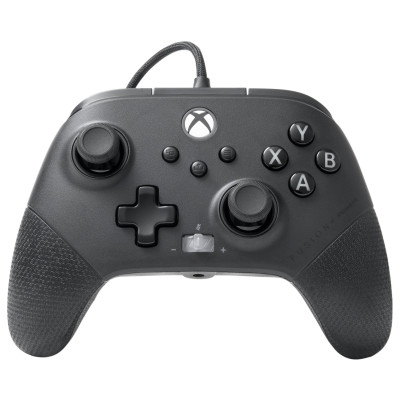
Product details
- Brand: PowerA
- Catalogue number: 454/8836
- Manufacturer's number: XBGP0325-01
PowerA
 UK:
UK:
 Eire:
Eire:
Email me this page
Enter your email address to have this page emailed to you *
Useful links
Online supportFAQs
If your controller is not powering on, check the following:
- Ensure the USB cable is properly inserted into the controller and console/PC.
- Try a different USB port.
- If the USB cable is detachable, try a different USB cable.
- Restart the console/PC, then reconnect the controller.
If the controller keeps disconnecting, try the following to resolve the issue:
- Check the USB cable for any damage.
- Use a direct connection to the console/PC (avoid using USB extension cables and USB hubs).
- If you are using a PC, disable USB selective suspend (Control Panel – Power Options – USB Settings).
If the buttons on your controller are not responding or becoming sticky, try the following to resolve the issue:
- Unplug the controller, then firmly press all the buttons a few times to free them.
- Clean around the buttons with a cotton swab with a small amount of isopropyl alcohol applied.
If your controller has stick drift, try the following to resolve the issue:
- Unplug the controller, restart the console/PC, then reconnect the controller.
- Clean the base of analogue stick with compressed air, or using a cotton swab with a small amount of isopropyl alcohol applied.
- If you are using a PC, recalibrate the controller: Windows Search – “Set up USB game controllers” - Properties – Calibrate.
- Hold the programme button down for 2-3 seconds. The connection button status will flash signalling the controller is in programme mode.
- Press either AGL or AGL to individually reset each button or hold down the programme button for 5 seconds to reset both.
It is important that when the controller is paired or reconnected to the Nintendo Switch system that the sticks are not touched. If this happens, turn the controller off by pressing the SYNC button once, then turning it back on by pressing the HOME button without touching the sticks.
How-to videos
-
How to Fix Controller Stick Drift
Returns policy
If you need advice or support for your product, please in the first instance contact the support provider using the number on this support page.
If you still need to return your product then please visit our most up to date returns policy here.