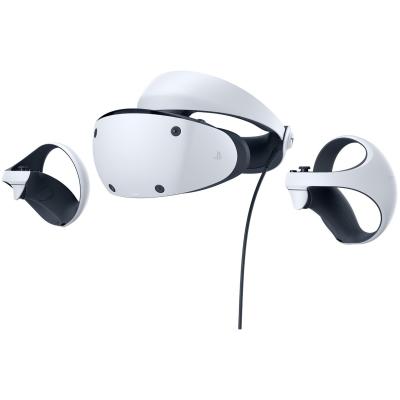
PlayStation VR2 Headset
581/3333
Buy it on Argos.co.uk
Product details
- Brand: Sony PlayStation
- Catalogue number: 581/3333
- Manufacturer's number: 9454199
Playstation Support
Call:
ONLINE ONLY
Mon-Sun:
Open 24 hours
Email me this page
Enter your email address to have this page emailed to you *
FAQs
- Press the scope adjustment button, and pull the scope all the way out.
- Press the headband release button on the rear of the headset. While pressing this button, pull the headband back and slide it over your head so it fits over the lower back of your head.
- Turn the headband adjustment dial clockwise to tighten the headband and lock it in position. If you want to loosen the headband, press the headband release button.
- Press the scope adjustment button and bring the scope closer to your face.
- Adjust the distance between the lenses using the lens adjustment dial.
- Turn on your PS VR2, go to the home screen and select Settings > Accessories > PlayStation VR2.
- You can also access this menu from the control centre.
- Select Play Area and choose from the following settings.
- Set Play Area
- This option resets the play area when you need to edit or set a temporary play area.
- Set Floor Height
- Boundary Display Sensitivity
- Set the sensitivity for how soon the boundaries of your play area are displayed when you approach them. To display the boundaries earlier, set the sensitivity to "High". If you set the sensitivity to "Low", you don’t see the boundaries until you’re close to the edge of your play area.
- Clear Play Area Data
- If your game doesn't proceed as expected after resetting the play area, try clearing the play area data. Then, reset your play area by selecting Set Play Area.
You can also change the function button assignment from Settings.
- Turn on your PS VR2, go to the home screen, and select Settings > Accessories > PlayStation VR2.
- Select VR headset > Function Button Assignment.
- You can assign the function button to View Surroundings or to Mute Microphone.
Set how long you can leave your PS VR2 headset without wearing it before it automatically turns off. This feature is disabled while playing a VR game.
- From the home screen, select Settings > System > Power Saving.
- Select Set Time Until Your PlayStation VR2 Turns Off.
- This setting appears only when your PS VR2 is connected and turned on.
How-to videos
-
How to Fix Controller Stick Drift
-
PS VR2 Set Up and Tricks


Returns policy
If you need advice or support for your product, please in the first instance contact the support provider using the number on this support page.
If you still need to return your product then please visit our most up to date returns policy here.