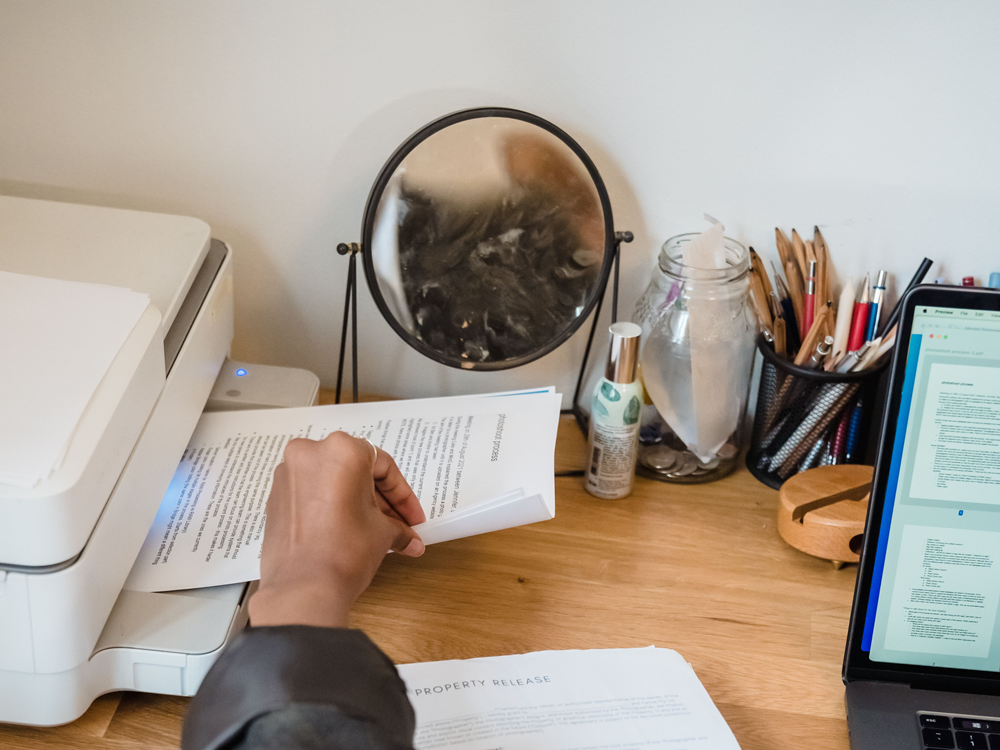
Printers are a useful workhorse of the home office, for everything from printing important documents to schoolwork and photographs. But even when everything seems to be working properly, the results don't always come out as expected. Blurred text, faded colours, ink smudges and streaky pages can all affect the quality of your prints.
Here are some common issues and helpful tips to improve print quality and keep your printer working as it should.
Why are my prints coming out blurry?
If your printed documents look unclear or text appears slightly out of focus, it could be down to your print settings or a problem with the printer's print heads.
Start by checking the print quality settings on your computer. If you're printing photographs or detailed images, try selecting a higher quality setting rather than draft or economy mode.
Also worth checking is the printer is using the correct paper setting. Using the wrong paper type can affect how ink is applied and how clearly the final image appears. Sometimes you may need to experiment with different quality settings to find what works best for the paper you are printing upon.
Find out more about alignment and nozzle checks here.
Faded ink, weird and missing colours
If your prints look faded or certain colours look off, again it's good to check the print quality settings first, before inspecting the printer itself. If all looks right the next thing to do is check your ink/toner levels. Low or empty cartridges can affect the quality of your documents.
For inkjet printers, dried ink or blocked print heads can also cause uneven printing. Most models have a built in cleaning function that can be accessed through the printer settings or software. Running a cleaning cycle may help clear blockages and improve the results.
If colours still appear incorrect, check that any cartridges are fitted properly and that you've selected colour printing rather than greyscale. Using your inkjet printer regularly helps to prevent build up and blockages from dry ink.
Streaky pages and ink smudges
Lines running across your documents or smudged ink can make printed pages look untidy.
For inkjet printers, try running the print head cleaning and alignment tools. These can help correct uneven printing and improve the appearance of text and images.
If ink is smudging, check that you're using suitable paper for your printer. Some paper types absorb ink differently, so using the recommended paper can make a difference. Allow freshly printed pages to dry before stacking them together.
For laser printers, streaks or marks may be linked to the toner cartridge or internal components. Check your manufacturer's guidance before attempting any cleaning.
And finally, we always recommend also ensuring the printer settings are correct for the type of document you are producing.
Getting the best print settings
Choosing the right settings can make a noticeable difference to your finished documents.
For everyday printing, standard or normal quality is usually suitable. For photographs, presentations or detailed images, selecting a higher quality setting can produce more vibrant results. Draft settings can also be very useful and help keep consumption down on less important documents.
You can also check the paper size, orientation and colour options before printing. You may want to experiment with a few sheets on different settings to see which settings work best with your printer and paper types. This helps avoid unnecessary reprints and wasted paper and ink in the long run.
Sometimes print quality and finished look can depend on the type of printer you have, read more in our blog on Printers and Ink Types: What is right for you?
Keeping your printer in good condition
Regular maintenance can help prevent common printing problems and keep your printer performing as expected.
- Keep the outside of your printer clean using a soft, dry cloth.
- Store paper somewhere dry to prevent moisture affecting print quality.
- Check ink or toner levels regularly.
- Use the printer's built in cleaning and alignment tools when needed.
- Keep printer software and drivers up to date.
Follow the manufacturer's instructions when replacing cartridges or cleaning internal parts.
Conclusion
Getting clear, good quality prints doesn't always mean buying a new printer or replacing parts. A few simple adjustments, regular maintenance and the right print settings can help improve your results and keep your printer ready for everyday use.