Oakley Meta Vanguard - Black, Prizm 24K Lens
791/5442
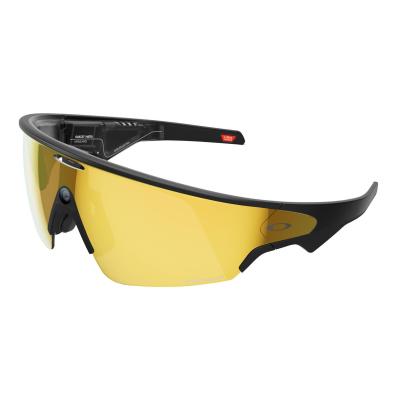
Product details
- Brand: Meta
- Catalogue number: 791/5442
- Manufacturer's number: SK-1001204-01
Meta Support
Email me this page
Enter your email address to have this page emailed to you *
FAQs
Warning: This will delete all the captures on your glasses and require you to unpair/ repair your glasses through the app.
To factory reset your glasses:
1. Close the right temple arm.
2. Press the capture button 5 times until the user LED turns orange.
3. Press and hold the capture button until the user LED starts flashing.
4. Release the capture button and wait for the LED to cycle through white and then green before turning off to indicate factory reset is complete.
5. You'll then need to un-pair and re-pair your glasses with the Meta AI app.
To force restart your glasses:
1. Press and hold the capture button at the same time as turning the power switch off (pull the switch back towards the back of the glasses) and then ON (push the switch forward towards the front of the glasses). Then release the capture button.
2. After turning the power switch to ON, release the capture button.
3. It may take a few minutes for your glasses to re-establish a connection with the app.
Force restarting will not delete your captures or require you to repair your glasses through the app.
If your glasses don't reconnect to the app within a few minutes, you may need to unpair the glasses from the Meta AI app and from the list of bluetooth devices on your phone, and then repeat the pairing procedure.
To restart your glasses slide the “On/Off button” back (Switch Off) and then forward (Switch On). After your glasses wake up, they will be reconnected to the app within a few minutes. This action will not cause you to lose any on-glasses media or cause the glasses to unpair from the Meta AI App.
If that does not correct the issue, then try force restarting.
1. Have a strong 5G Wi-Fi or cellphone signal
2. Are close to your phone
3. Keep your phone in a front pocket or in front of you
4. Are disconnected from other Bluetooth devices
1. Move your phone closer to your glasses, and try again.
2. In your phone's Bluetooth settings, confirm that your Bluetooth is on and your glasses are connected.
3. Turn Bluetooth off and on again.
4. Close the Meta AI app and then restart it.
5. Restart both your phone and glasses.
6. Unpair your glasses from the Meta AI app, and then remove them from your phone's Bluetooth list of devices. Then, pair your glasses again.
To unpair your glasses from the Meta AI app:
1. From the Meta AI app, tap the gear symbol in the bottom right.
2. Tap Your glasses or select the device you want to manage settings for then tap Your glasses.
3. Tap General.
4. Tap Unpair glasses.
5. Tap Unpair.
1. Remove your glasses from the case.
2. Turn your glasses on by sliding the power switch on the left frame towards the front of the glasses.
3. Dock the glasses inside the case.
4. When the case LED starts flashing blue, your device is ready to pair with the Meta AI app. If your device does not automatically go into pairing mode, you can manually turn pairing mode on by pressing and holding the button on the back of the case for at least 5 seconds.
5. From the Meta AI app, tap the gear symbol in the bottom right.
6. Tap Add device in top right and follow the on-screen instructions.
There are a few reasons why you may be receiving a charging error:
- Liquid detected: Liquid is interfering with the charging interface between the nose bridge of your glasses and the charging case. Wipe the charging contacts clean on both devices and try again.
- High temperature: The charging case has reached a temperature that is too high to charge your glasses. Move your case into a cooler location.
- Incompatible charger: Case cannot charge due to the charging cord or power adapter being used. Try using a different cable or power adapter.
Your glasses may not be powering on due to not being able to charge when docked. Dried sweat, dirt, and liquid can all cause interference between the nose bridge of your glasses and the charging case. Thoroughly clean both devices, then try to charge again.
To charge your glasses, put them in the charging case and place it on the nose bridge inside the charging case*. This is the only way to charge the glasses. You'll know your glasses are charging when the case LED blinks after you've docked them and closed the case. You can also see a charging icon in the Meta AI app.
*The first time you charge your glasses you need to remove the protective plastic tab from the metal charging connections on the case.
To charge your charging case, connect the case to a power adapter using a USB-C cable and plug it into the front of the charging case. This is the only way to charge the case. If you're having issues with charging the charging case, please see the Troubleshooting section.
1. Make sure the glasses have the power switch turned on by pushing the switch towards the front of the frame. If you see a red dot next to the switch, that means the glasses are OFF.
2. Dock the glasses inside the charging case and charge for an hour. Make sure the charging pins on the case and glasses are clean. If the glasses are charging, the LED indicator on the case will show orange (take out "pulsing"). If you don’t see a charging indicator, try charging the case from a different outlet, with a different cable, with a different charger or with a USB-C charging block.
3. If you’ve tried steps 1 to 2 and your glasses still don’t turn on after several hours of charging, you can request a replacement pair.
Questions & answers


Returns policy
If you need advice or support for your product, please in the first instance contact the support provider using the number on this support page.
If you still need to return your product then please visit our most up to date returns policy here.