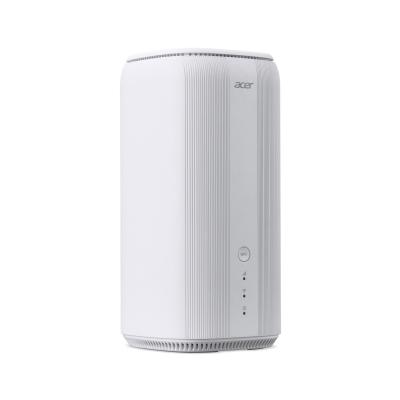
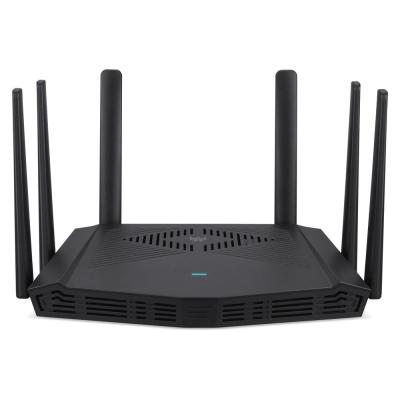
Acer Connect X6E Dual Band AXE5400 Wi-Fi 5G Router
774/5038
Buy it on Argos.co.uk
 UK:
 Eire:
Product details
- Brand: Acer
- Catalogue number: 774/5038
- Manufacturer's number: FF.G2PTA.001
Acer Technical Support
UK:
Eire:
0371 760 1000
01 437 8367
Mon-Fri:
Sat-Sun:
9am to 6pm
Closed
Email me this page
Enter your email address to have this page emailed to you *
FAQs
If you have no internet connection, check the following:
- Check that the broadband cable (DSL/fibre/ethernet) is firmly connected.
- Confirm your router’s Internet/Broadband light is on and stable (not flashing red/amber).
- Restart your router by switching it off for 60 seconds, then back on.
- A red/amber light typically indicates a connection issue.
- Flashing lights may indicate the router is attempting to connect or update.
- Restart the router and wait 5–10 minutes for it to reconnect.
- If the issue persists, check the cables or contact your Internet Service Provider (ISP).
If the Wi‑Fi speed is slow, try the following:
- Move closer to the router to improve signal strength.
- Reduce the number of devices connected to the Wi-Fi.
- Check for background downloads or streaming.
- Restart the router to refresh the connection.
If your Wi‑Fi connection keep dropping, check the following:
- Ensure the Wi-Fi router is not obstructed by walls or large objects.
- Keep the router away from electronic interference such as microwaves or cordless phones.
- Reduce the number of devices connected to the Wi-Fi.
- Restart the router to refresh the connection.
If the Wi-Fi is weak in some areas of your home, try the following:
- Move the router to a more central location in your home.
- Avoid placing the Wi-Fi router near thick walls or metal objects.
- Consider using a Wi-Fi extender or a mesh system.
How-to videos
-
How To Reset Your Wi-Fi Router
Returns policy
If you need advice or support for your product, please in the first instance contact the support provider using the number on this support page.
If you still need to return your product then please visit our most up to date returns policy here.