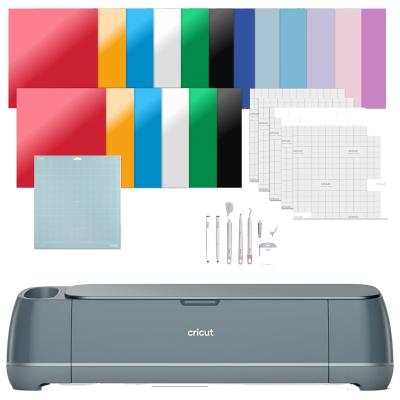
Cricut Explore 4 Bundle
744/9523
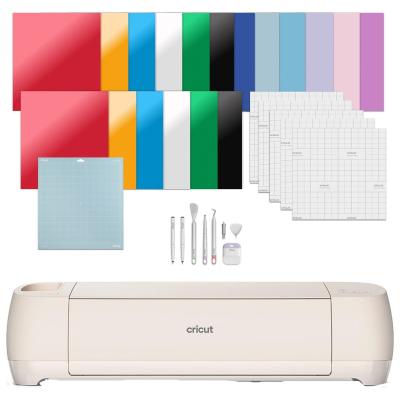
Product details
- Brand: Cricut
- Catalogue number: 744/9523
- Manufacturer's number: 2011287
Cricut Member Care team
Email me this page
Enter your email address to have this page emailed to you *
Useful links
Online supportFAQs
- All Cricut machines work with Cricut Design Space, a free app that allows you to create, import, and cut designs.
- Cricut Joy can also use Cricut Joy app for simplified projects.
Design Space requires the internet to sign in and load images, but supports offline mode for cutting saved projects.
Yes. Cricut supports the following image formats:
- SVG (the best format)
- PNG
- JPG
- BMP
- GIF
- DXF
When powering on the machine
If the power button light is flashing or blinking red when you first power the machine on, contact Member Care for assistance.
Try a power cycle:
- Unplug the device.
- Hold the power button for 30 seconds.
- Plug back in and power on.
- When updating firmware
If the power button light is flashing or blinking red when you are attempting to update your machine's firmware, contact Member Care for assistance.
If your Cricut Explore or Cricut Maker series machine pauses or stops in the middle of executing your project, follow the troubleshooting steps below:
- Do you have multiple Design Space windows open? If so, close the additional windows until your project is complete. If this does not help, proceed to step 2.
- Do you have this issue with multiple projects? If the issue is isolated to this project, you will need to re-create the project. If you’re experiencing this with multiple projects, proceed to step 3.
- Close any other programs that may be running on the computer or mobile device and attempt the project again. If this does not help, proceed to step 4.
- Disconnect your Cricut machine from your computer/device and turn your Cricut machine off. Then, restart your computer/device.
- Next, reconnect your machine to your computer/device and wait a few moments, then open Design Space and attempt the process again.
- Make sure it’s within 10–15 feet.
- Restart both the machine and your device.
- Remove the machine from Bluetooth settings and reconnect.
- Ensure it’s not already connected to another device.
To see the materials that you can cut here
Returns policy
If you need advice or support for your product, please in the first instance contact the support provider using the number on this support page.
If you still need to return your product then please visit our most up to date returns policy here.