Philips Series 9900 SkinAI IPL Hair Removal BRI951/01
735/7206

Product details
- Brand: Philips
- Catalogue number: 735/7206
- Manufacturer's number: BRI951/01
Philips Personal Care Support
 UK:
UK:
 Eire:
Eire:
Email me this page
Enter your email address to have this page emailed to you *
FAQs
Yes, you can you use the SkinAI features on multiple mobile devices. Suppose you get a new mobile device, re-install the Lumea app and log in to your MyPhilips account, the SkinAI features will still be unlocked and available.
However, you can only use your Lumea 9900 to unlock the SkinAI features on one MyPhilips account.
The Skin-Selfie Analyser in the Philips Lumea app allows you to build a profile of your skin. If your score is significantly different from one photo to the next, there may be factors preventing you from achieving consistent photo quality.
Try to take a selfie under the same conditions each time, paying particular attention to the following factors:
- Lighting: consistency is important, and lighting may differ significantly depending on the room you’re in and the time of day. Natural light works best, but try and recreate the same lighting conditions each time, whichever light source you use.
- Distance: hold the camera the same distance from your skin each time.
- Angle: try and take the photo so that the camera is pointed directly at the skin being photographed.
Considering the factors above when taking your selfies will lead to a more reliable score and prevent the Skin-Selfie Analyser from giving varied results.
- Ensure your Lumea app has access to your mobile device’s camera.
- Make sure to take the photo with the camera facing directly at the area being photographed.
- Ensure the area of your body you would like to capture has equal lighting and is not obscured by shadows.
- There must be visible hair growth. Wait about 3–4 days after shaving so that the hair growth is visible in the photograph.
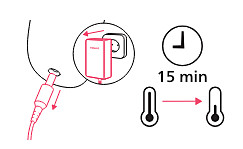
Turn off, unplug and allow your Lumea to cool
Do not touch the light exit window during or immediately after use. This part becomes very hot. After use, unplug Lumea and the power adapter and let them cool down for 15 minutes before cleaning and storing.
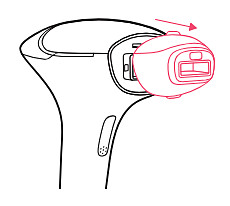
Gently pull off the attachment
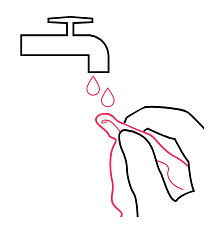
Lightly moisten your Philips Lumea cleaning cloth
Dampen the soft Lumea cleaning cloth with a few drops of water.
Do not clean Lumea in wet surroundings and do not let water run into Lumea.
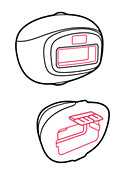
Clean the attachments
Clean each part of the attachment you used, including the metal reflectors and the connector.
Store all parts in the original packaging or in the provided bag, pouch or box in a dust-free and dry place.
If you are unable to resolve the issue, then please either call us using the phone number on this page OR click HERE to arrange a return or exchange.
Questions & answers


Returns policy
If you need advice or support for your product, please in the first instance contact the support provider using the number on this support page.
If you still need to return your product then please visit our most up to date returns policy here.