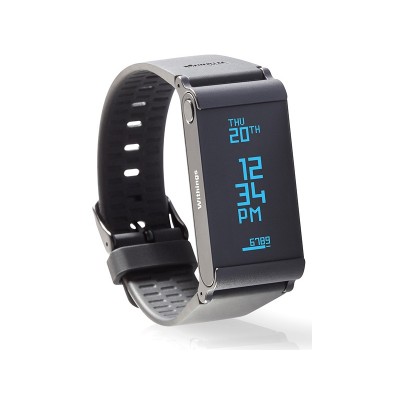
Withings Pulse Fitness Activity Tracker - Blue
379/9260
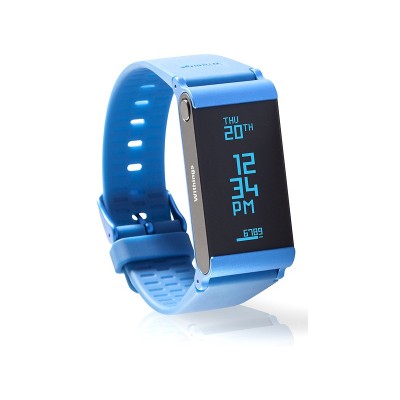
Product details
- Brand: Withings
- Catalogue number: 379/9260
- Manufacturer's number: 70034701
Withings Support
 UK:
 Eire:
Email me this page
Enter your email address to have this page emailed to you *
Useful links
Online supportFAQs
If the screen of your Withings Pulse doesn't turn on:
- Charge it for at least two hours. Try using a USB cable you know is working to make sure the issue doesn't come from the cable that comes with the device.
- After charging it, press the button for 15 seconds. At this point, it can take up to a minute for your Withings Pulse to start. When it does, "hello" is displayed on the screen.
- Plug the cable included in your Withings Pulse package to your Withings Pulse.
- If you've lost the cable provided, any USB to micro USB cable will do.
- Plug the other end of the cable either to your computer USB port, or to your phone charger. If you're using a phone charger, plug it in to the wall.
If the setup process fails, perform the following steps:
- Make sure you have access to the internet on your mobile device.
- Make sure that you keep the app open during the installation process.
- Make sure that the screen of your mobile device stays on during the installation process.
- Keep your Withings Pulse close to your mobile device during the installation process.
Running:
- You need to run for at least 2 minutes for your running to be detected. You need to run somewhat consistently.
- If you stop running every other minute, the algorithm won't be able to detect your activity.
Other activities:
- Only walking and running are detected at this point.
"Hw failure" and "Error #" messages
1. Charge your Withings Pulse Ox for at least two hours. Try using a USB cable you know is working to make sure the issue doesn't come from the cable that comes with the device.
2. After charging it, press the button for 15 seconds. At this point, it can take up to a minute for your Withings Pulse to start. When it does, "hello" is displayed on the screen.
If your Withings Pulse is stuck on "Updating..." during the installation process, perform the following steps:
- Stop the installation process by exiting the app.
- Perform a hard reset by pressing the button for 15 seconds.
- Start the installation process again.
If your Withings Pulse is stuck on "Updating..." during the installation process, perform the following steps: 1. Stop the installation process by exiting the app. 2. Perform a hard reset by pressing the button for 15 seconds. 3. Start the installation process again.
Questions & answers
How-to videos
-
Tips for the best vital sign tracking
-
How to wear your Pulse Ox?
-
How to use your Pulse Ox
-
How to set up your Pulse Ox with an Android device
-
How to change your Pulse wristband
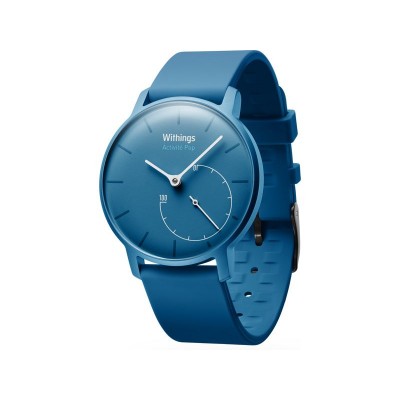
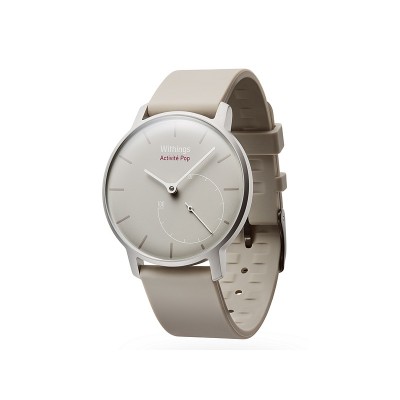
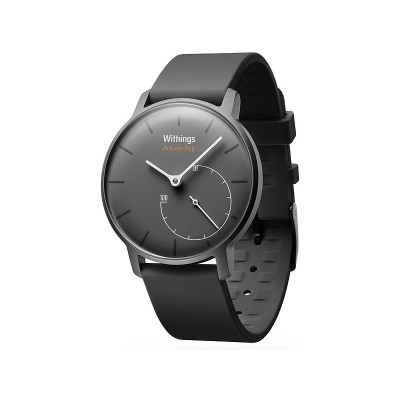
Returns policy
If you need advice or support for your product, please in the first instance contact the support provider using the number on this support page.
If you still need to return your product then please visit our most up to date returns policy here.