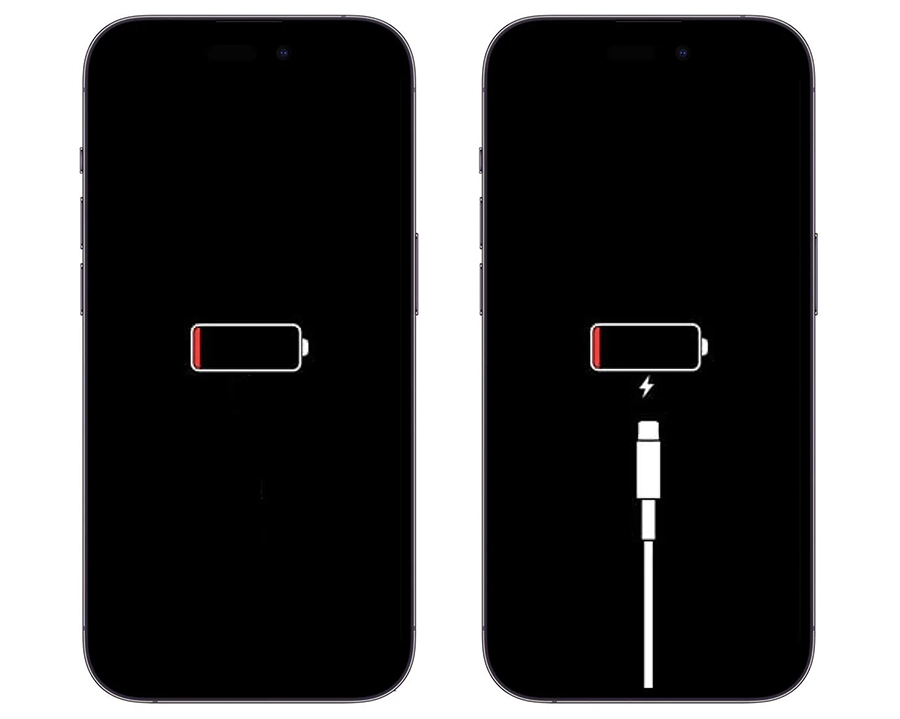
In the world of modern communication and tech, our phones have become a work horse of day to day life. With these increasing demands on these devices the battery can often take quite a beating.
Luckily there are many ways to make your iPhone (and other smart phones) battery last longer. Below are the easiest and most effective things you can do to save those precious few percent.
1. Make your screen turn off quicker
Quite a number of these tips mention the screen on your device. Our device screens drain a lot of battery, but also sometimes needlessly, like when it stays on too long. Setting it to turn off sooner saves power instantly.
To reduce the amount of time before your screen switches off open Settings then tap Display & Brightness then Auto‑Lock. Here you can adjust your screen time out.
2. Lower your screen brightness
Another screen related battery saving tip surrounds the brightness you phone displays at. The brighter the display the more power it consumes. A slightly dimmer screen can add hours of extra battery life.
From the home screen open Settings and select Display & Brightness. Move the brightness slider down. Allowing auto brightness to control your display can also work well for battery life as your phone automatically dims and brightens according to the ambient brightness.
3. Turn off Always‑On Display (if your iPhone has it)
If you have an iPhone 14 Pro or newer, your phone will have an Always On feature. This feature dims the screen when locked, but allows widgets, notification sand the time to stay visible. Some may find this option distracting, drawing their eye constantly across to their locked phone. It looks nice yes, but it uses a noticeable amount of battery every day in some cases as much as 14%.
To turn off Always On, go to Settings, Display & Brightness and switch “Always On Display” to off.
4. Switch to 4G/LTE if 5G is weak
This “hack” is great if you’re in an area with poor 5G signal. Switching your phones cellular options can save a decent amount of battery. Normally phone automatically switches from 5G to 4G depending on availability. BUT crucially switching the cellular option to 4G/LTE will prevent the phone wasting battery constantly searching for a 5G connection.
Open Settings then select Cellular, Choose Cellular Data Options, Voice & Data and select LTE.
5. Use Low Power Mode whenever you need extra time
This feature pops up as an option whenever your phone hits low on battery reserves. Switching on Low Power mode covers a whole host of features, instantly reducing background activity and visual effects to save power.
From the Setting menu choose Battery, then Power Mode and turn on Low Power Mode.
6. Stop apps from refreshing in the background
Most apps don’t need to stay active when you’re not using them. So, stopping them from constantly using data and battery is a no brainer for many.
Open Settings and then General, choose Background App Refresh and turn off apps you don’t want to refresh in the background.
7. Turn off Bluetooth, AirDrop and Hotspot when you’re not using them
Three features that are regularly left on and running in the background contribute to a good portion of battery drain each day for many. Things like Bluetooth running all day can be very convenient, like connecting to your car automatically when you get in, but these features all use battery in the background, always refreshing and looking for connections.
Turning them off is simple and can be done either from either the Settings menus or via the Control Centre you see when dragging down from the top right of your screen.
8. Turn off keyboard and system vibrations
For some these small vibrations each time a key is pressed are helpful, however these tiny vibrations use more battery than you’d expect.
To turn these features off, again we start in the Settings Menu, find and touch Sounds & Haptics then turn of System Haptics also check the Keyboard Feedback menu to turn of Keyboard Haptics.
9. Turn on Adaptive Power
On newer model iPhones this is smart feature learns your habits and makes small adjustments to the background operations and underlying settings automatically, saving you battery.
To turn on or off Adaptive Power got to Settings, then Battery. Then inside Power Mode select Adaptive Power.
10. Turn off “Hey Siri”
Your iPhone always listens for “Hey Siri,” although convenient this function can drain battery passively throughout the day. To combat this battery drain if you don’t need the function go to Settings, Apple Intelligence & Siri, then Talk to Siri, and turn off Listen for “Hey Siri”.
If you are an avid user of this function, you could still save a little battery by turning this off the night when it’s not going to be needed as much.
This concludes our top ten tips for saving the vital percentage points of battery life. However, there are still a number of other great tips you can employ to further reduce the consumption of the battery life, such as limiting your screen refresh to 60Hz or changing location settings in your apps to “Only While Using the App”. Newer iPhones can also benefit from Ultra Low Power mode is available (iOS26.2).
For our full range of iPhones click here or more tips and tricks for your devices visit argos-support.co.uk/blog