
Your iPhone is packed with helpful features that can make everyday tasks quicker and easier. From sharing your screen during a FaceTime call to scanning and signing documents without extra apps, these built-in tools are designed to help you stay connected and organised. Below are some practical iPhone tips and tricks everyone can benefit from.
Share Your Screen During a FaceTime Call
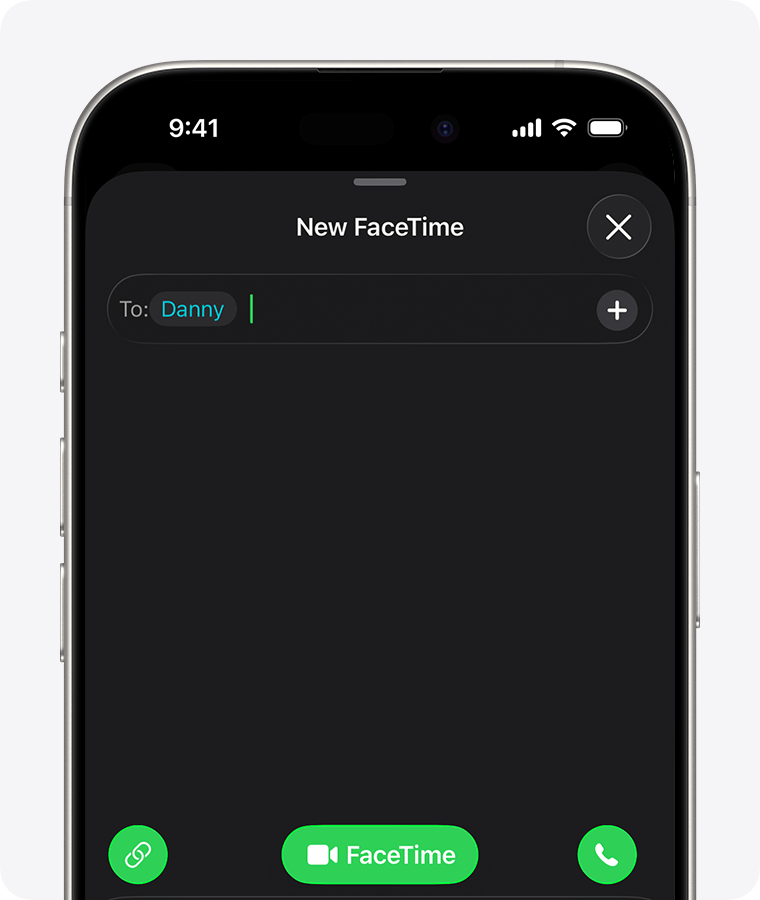
Screen sharing is a great way to show someone exactly what’s on your iPhone screen. Whether you’re helping a family member change a setting, looking at a website together, or getting support, it makes conversations clearer and more interactive.
Before you start, make sure both you and the other caller are using iOS 26 or later. Open the FaceTime app and start a one-to-one call. During the call, tap the More button and select Screen Sharing. You can then choose to Share My Screen or Ask to Share Screen.
If you share your screen, a short countdown appears so you have time to prepare. While sharing, the other person can tap, draw or write on your screen to highlight an area, with these markings fading after a few seconds. To stop sharing, tap More again and select Stop, or simply end the call.
Enjoy Music and Video Together with SharePlay
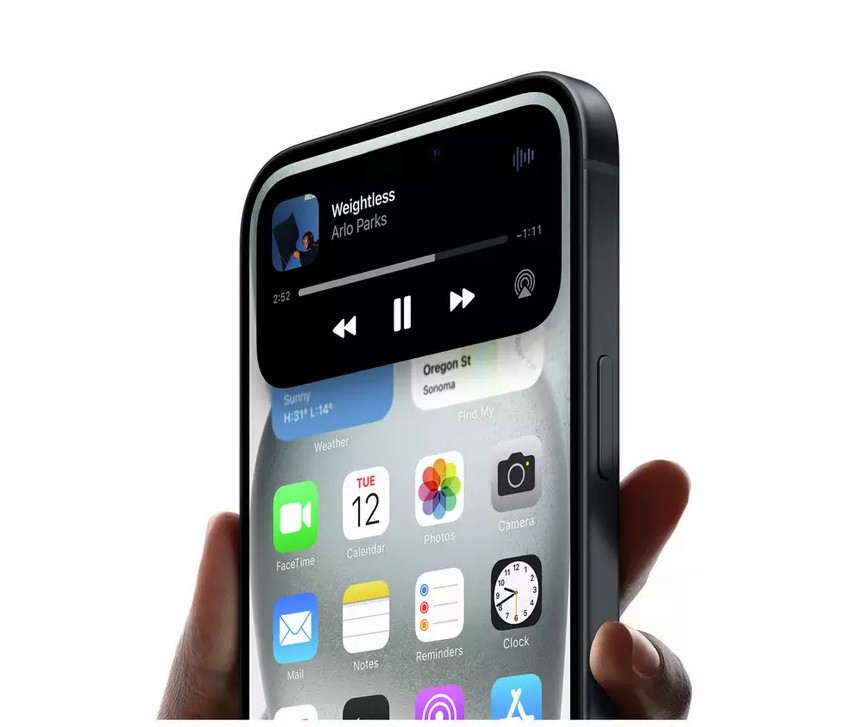
SharePlay lets you watch or listen to supported content together during a call, even when you’re in different locations. It’s ideal for sharing a favourite song or enjoying a TV programme at the same time.
Start a facetime call using the Facetime app, tap More, then select Share Play. Choose a supported app such as Apple Music or Apple TV, find the content you want to share, and press play. If everyone on the call has access, playback will begin at the same time. Anyone can control playback, while volume and captions stay personalised on each device. Please note though that some content may require a subscription or may not be available in all regions.
Scan Documents Quickly Using Notes

Hold your document within the camera view and let Auto mode scan it, or scan manually using the shutter or volume buttons. After scanning, adjust the corners for a neat finish and tap Keep Scan. You can add extra pages or save the document straight away.
Sign and Store Documents on Your iPhone

Once you’ve scanned a document, signing it is just as easy. Open the scan in Notes, tap Markup, select Signature, and place it wherever needed. You can also scan documents using the Files app, making it simple to save, organise and access important paperwork in one place.
Conclusion
With features like FaceTime screen sharing, Share Play and built-in document scanning, your iPhone can help you stay connected, organised and productive without the need for extra apps. Whether you’re supporting a family member, enjoying content together, or managing paperwork on the go, these tips and tricks are designed to make everyday life that little bit easier. For more step-by-step help and support, visit argos-support.co.uk and discover even more ways to make the most of your iPhone.
View the full range of Apple Devices here