ACER SWIFT 1 14 PENT SILV 4GB 128GB LTOP
959/7325
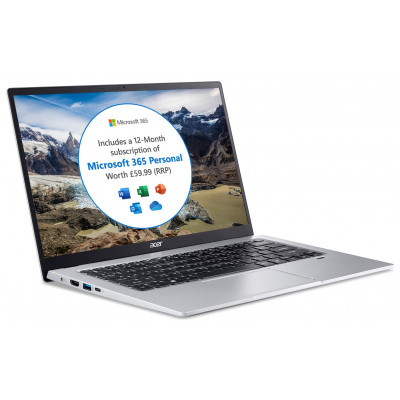
Product details
- Brand: Acer
- Catalogue number: 959/7325
- Manufacturer's number: SF114-34
Acer Technical Support
 UK:
UK:
 Eire:
Eire:
Email me this page
Enter your email address to have this page emailed to you *
FAQs
You can turn off notifications so that you can leave your computer running, but not be disturbed by notifications. Press the Windows key or select the Windows Start button and select Settings > System > Notifications & actions. From here you can enable/disable notifications for all of your apps or choose which apps to enable/disable.
Press the Windows key or select the Windows Start button and select the power icon > Shut down. You can also turn off the computer by right-clicking the Windows Start button > Shut down or sign out > Shut down.
Press the Windows key or select the Windows Start button > Settings > Update & Security > Windows Update. Select Advanced options to configure the settings.
No, the laptop does not have a disc drive.
The battery on the laptop can last up to 15 hours.
The most common causes for frequent buffering include: -
- A slow or unstable internet connection.
- A poor-quality Wi-Fi signal.
- Network congestion or high bandwidth usage.
- Outdated apps or an old device.
- Streaming in higher video quality than your internet connection can handle.
Try the following steps: -
- Pause the video/game for a few seconds to let it build up enough data to resume.
- Lower the streaming quality from 1080p to 720p.
- Close other apps or devices to reduce bandwidth usage.
- Use a wired ethernet connection.
- Move close to your router if you are using a Wi-Fi connection.
- Restart your router.
- Check if there is an update for the streaming app or your devices firmware.
Below is a general guide:
- Standard Definition: 3-4 Mbps.
- High Definition: 5-8 Mbps.
- 4K/Ultra HD: 15-25 Mbps.
Possible reasons for your streaming still buffering are: -
- Inconsistent internet speed.
- Wi-Fi signal keeps dropping.
- The ISP (Internet service provider) or streaming service is overloaded.
- Device performance issues (E.g., overheating, low memory).
Try the following: -
- Run an internet speed test using for example Speedtest.net.
- Try streaming on a different device.
- Use a different streaming platform (E.g., YouTube).
How-to videos
-
What to do if you cannot connect a BT Smart Hub 2


Returns policy
If you need advice or support for your product, please in the first instance contact the support provider using the number on this support page.
If you still need to return your product then please visit our most up to date returns policy here.