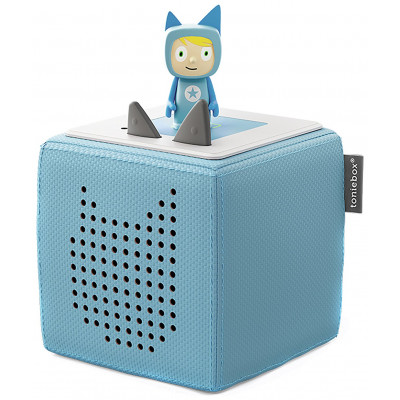
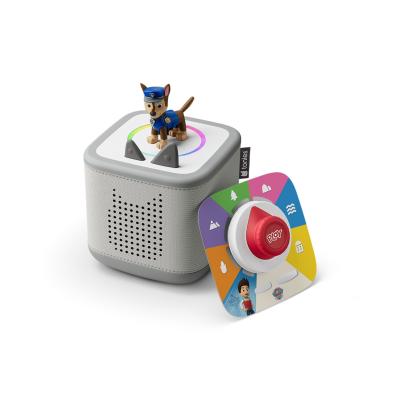
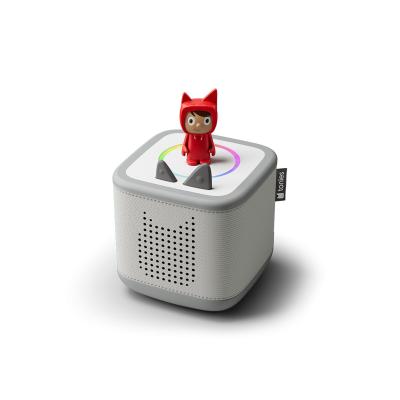
tonies Teal Toniebox2 Starter Set & Creative Tonie
776/0934
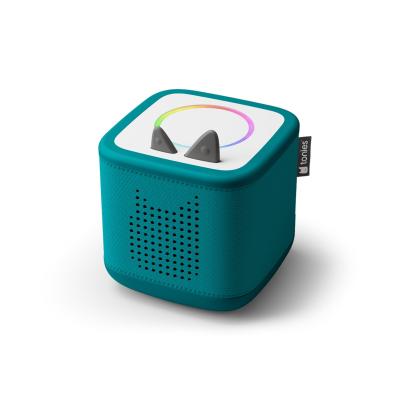
Product details
- Brand: Tonies
- Catalogue number: 776/0934
- Manufacturer's number: 11002730
Tonies
 UK:
 Eire:
Email me this page
Enter your email address to have this page emailed to you *
Useful links
Online supportFAQs
Nope! Once your Toniebox has synced with your Wi-Fi, and you've uploaded your Tonies, you can take it offline to play content. You will only need to be online for updates and when you want to upload a new Tonie.
Yes! The songs and stories will start playing when you put a Tonie on top of the Toniebox. Once the Tonie is downloaded you will still need the character to play the content.
Any time you make a change to your Toniebox 1 settings or update your Creative Tonie, simply pinch one ear of the Toniebox 1 for 3 seconds, and it will perform a freshness check to sync your updates. You'll know this was successful when you hear the tone!
Updating something for your Toniebox 2? You don't have to do anything, changes are synced automatically.
First you'll need to download it. Once a Tonie’s content has been downloaded to your Toniebox, it can play offline anywhere. You'll know a Tonie is fully downloaded when the LED turns from blue to green when placed on top for Toniebox 1
For Toniebox 2, the Dynamic Light Ring will flash Green and White and begin the Rainbow Light pattern once the download is complete.
There's no off button! The Toniebox will power down automatically after 10 minutes of inactivity.
In addition to recording your own stories and songs, you can also assign our free content to your Creative Tonies directly from the tonies® app!
Keep in mind that some of our free content is for a limited release only. We recommend signing up for our newsletter and following us on our social media channels to get notifications of new content releases!
How to assign free content using the tonies® app:
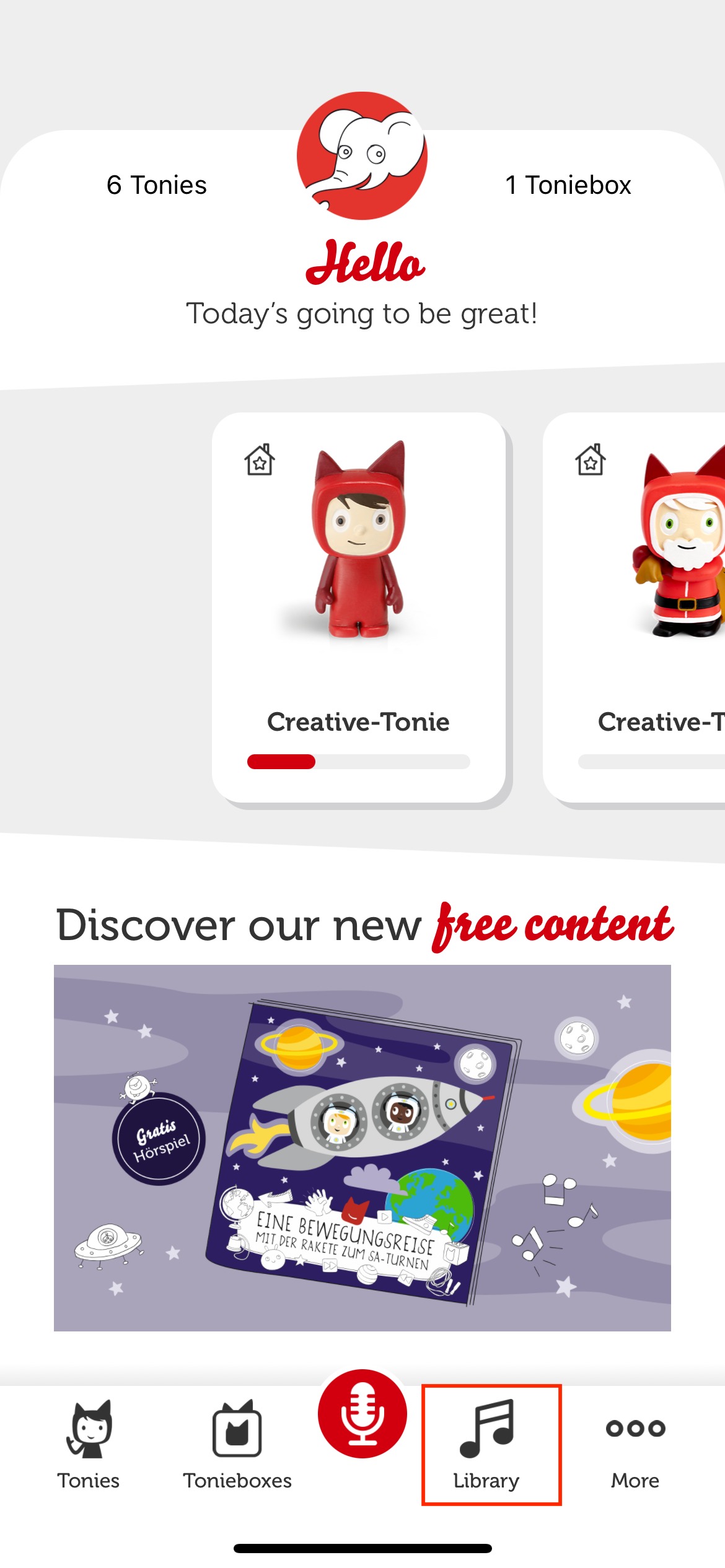
- Open the tonies® app and tap to open the 'Library' tab on the bottom of the screen.
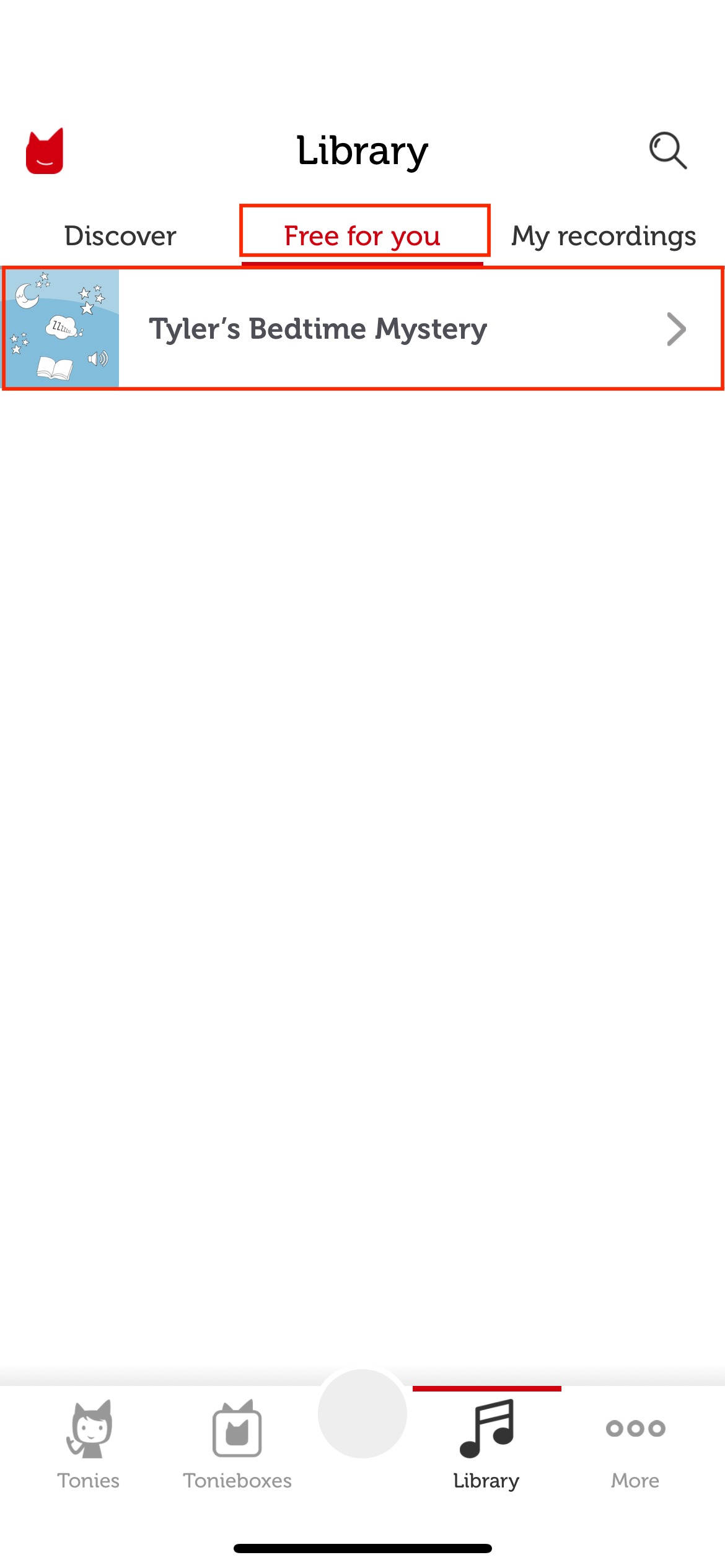
- Make sure you are currently viewing the 'Free for you' section of the Library to see the list of currently available free content. Then tap on the name of the content you would like to assign.
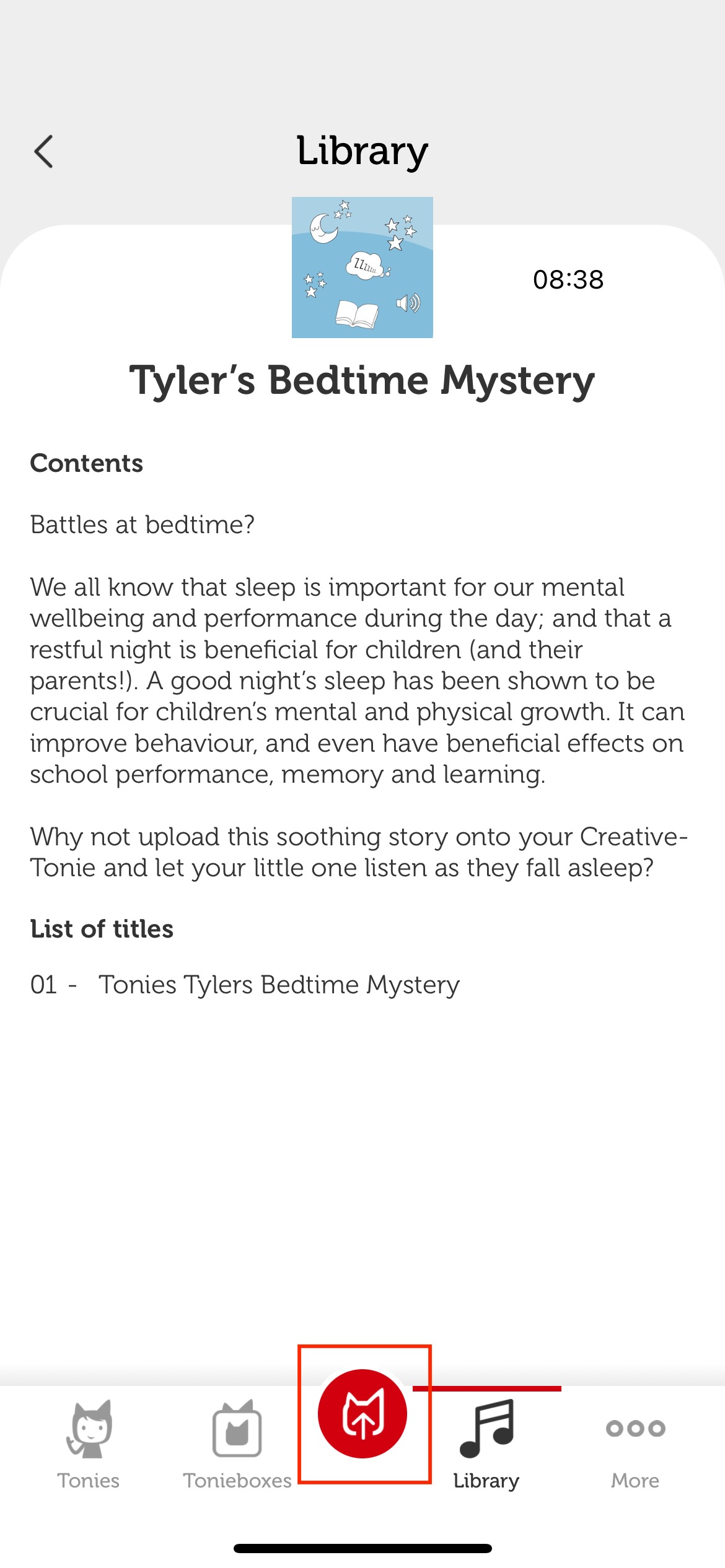
- If you would like to assign this content, tap on the red tonie logo with arrow at the bottom of the screen.
- This will display a list of available Creative Tonies you can assign the content to. Note that only Creative Tonies with sufficient space and that you have access to will be shown here. Once you find the Creative Tonie(s) you would like to upload to, tap on the picture of the Creative Tonie.
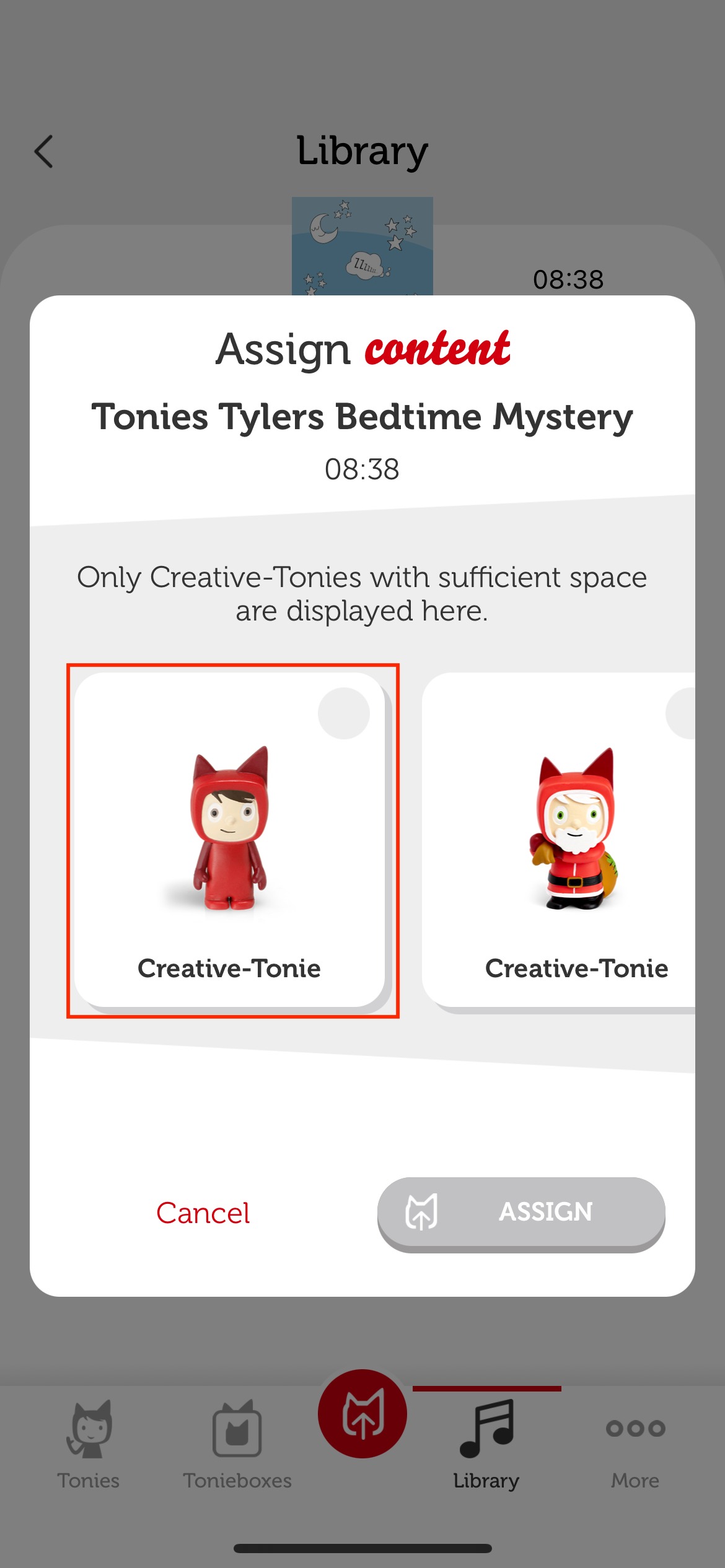
- A green checkmark will be displayed next to the picture of the Creative Tonie(s) you have selected. Once you are done selecting the Creative Tonies, tap on the red 'Assign' button.
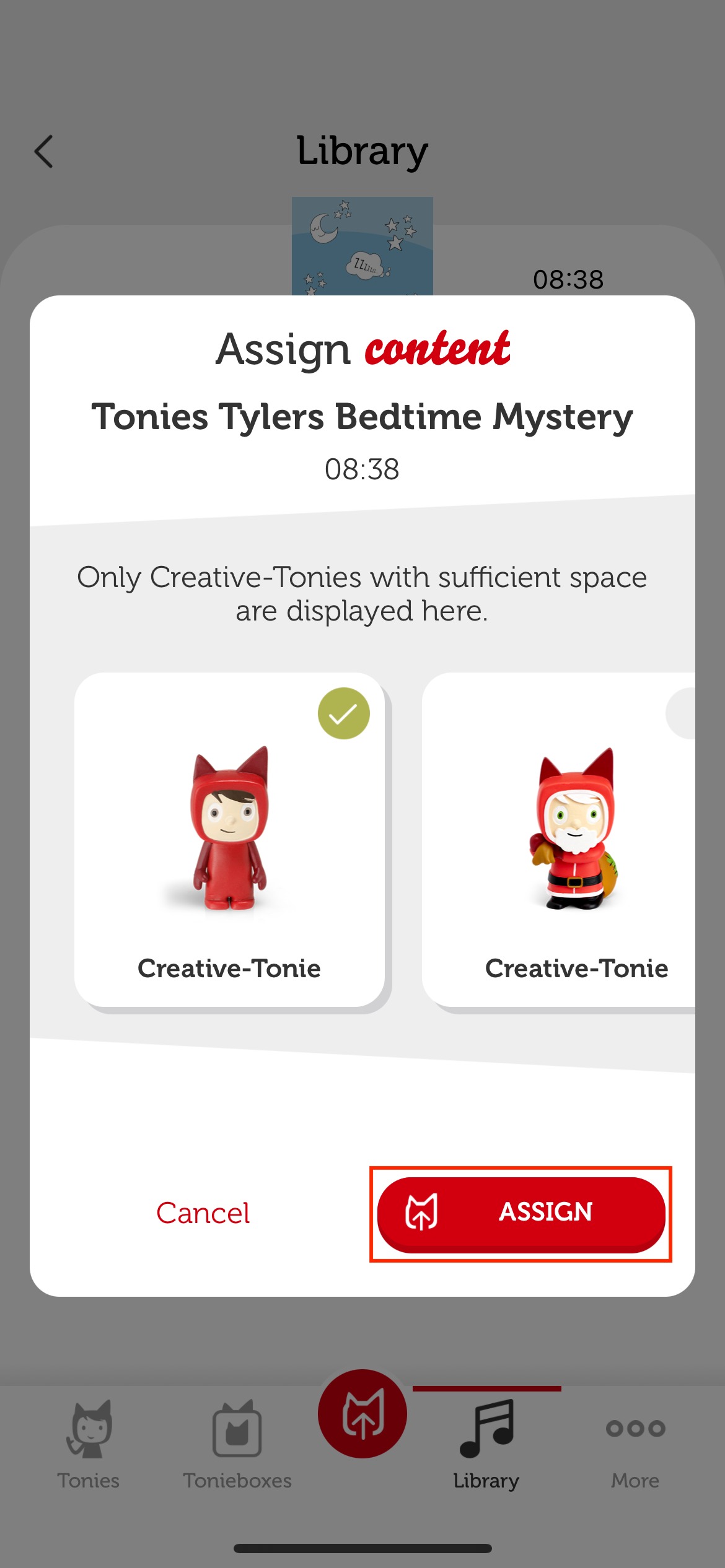
- The free content is now assigned to your Creative Tonie! Now, you will just need to sync your Toniebox in order to download the new content. To do this, simply turn on the Toniebox and pinch one of the Tonieboxes ears for about three seconds until you hear a sound. The LED will begin flashing blue while your Toniebox updates with the new content. You can then place the Creative Tonie onto the Toniebox when the light turns solid green. The new content will then be played and downloaded simultaneously.
Please note: The free content is based on your country settings and is currently only available in the region you are currently located.
Returns policy
If you need advice or support for your product, please in the first instance contact the support provider using the number on this support page.
If you still need to return your product then please visit our most up to date returns policy here.