Logitech G29 Steering Wheel + G435 Headset Bundle PS & PC
442/7139
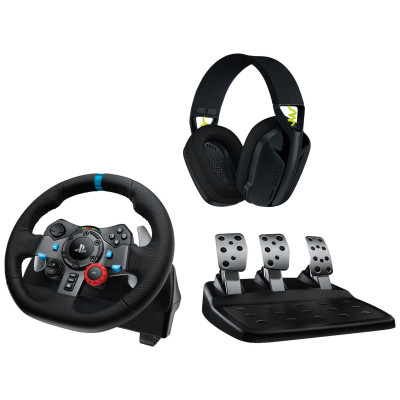
Product details
- Brand: Logitech
- Catalogue number: 442/7139
- Manufacturer's number: 991-000540
Logitech Support
 UK:
 Eire:
Email me this page
Enter your email address to have this page emailed to you *
Useful links
Online supportFAQs
- If you're having connection issues with the G29 steering wheel, make sure that you’ve disabled third-party applications that attempt to emulate controllers. Software such as DS4, DuelSense x, and x360ce can cause problems with the steering wheel being detected.
If your G29 racing wheel does not exhibit any force feedback during gameplay on your PC, check the following:
- Make sure that you’ve installed the latest version of Logitech Gaming Software (LGS). The G29 racing wheel require LGS to be installed on your PC for force feedback to function.
- Confirm that the steering functions (including force feedback) are properly mapped in the game’s control options or settings, and in Logitech Gaming Software (where applicable).
The G29 racing wheel has dual motors that provide force feedback on supported games and systems. The G29 racing wheel has an overheat protection circuit to safeguard them under high-temperature operating conditions.
In rare instances, force feedback features may shut down during use, while the controls continue to operate. If this happens, allow the wheel to cool down by using the following steps:
- Disconnect the wheel unit’s power adapter from the power source.
- Disconnect the wheel unit’s USB connection from the game console or PC.
If the pedals on your pedal unit don’t respond, please use the following steps to troubleshoot the problem:
- Confirm that the wheel unit is properly connected to power. The connection port is located on the underside of the wheel unit.
- Confirm that the pedal unit is connected to the wheel unit. The connection port (DB-9 female) is located on the underside of the wheel unit.
- Confirm that the wheel is connected via USB to the game console or PC. Once connected to your game console or PC, the wheel will rotate fully to each side and then to the center to calibrate.
NOTE: If connected to a PC, make sure that you’ve installed Logitech Gaming Software 8.70 or later.
If your steering wheel is not being detected by my PC/console, check the following:
- Make sure the USB cable is fully inserted and not damaged.
- Plug the steering wheel directly into the PC/console, not through USB hubs.
- Restart the wheel and console. Power cycling often resolves detection issues.
- Most steering wheels will auto rotate for calibration on startup.
- On PC, use the manufacturers software to recentre and set the steering angle.
If the steering wheel disconnects randomly during gameplay on PS5/Xbox, check the following:
- Check the USB cable, that it is not damaged and that it is fully inserted.
- Try using a different USB port.
- Certain games have limited steering wheel support which can cause the steering to disconnect randomly.
- Ensure the firmware on the steering wheel is up to date.
How-to videos
-
How to Fix Controller Stick Drift
-
How to troubleshoot G923/G29/G920 for Connection Issue
-
Introduction To Logitech G HUB
-
ACC Quick Start


Returns policy
If you need advice or support for your product, please in the first instance contact the support provider using the number on this support page.
If you still need to return your product then please visit our most up to date returns policy here.