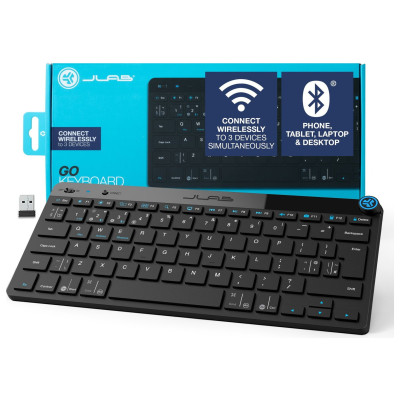
JLab GO Wireless Bluetooth Keyboard - Black
306/8135
Buy it on Argos.co.uk
 UK:
UK:
 Eire:
Eire:
Product details
- Brand: JLab
- Catalogue number: 306/8135
- Manufacturer's number: IEUGBKGOKEYBRBLK4
Jlab Support
UK:
Eire:
ONLINE ONLY
ONLINE ONLY
Mon-Sun:
Open 24 hours
Email me this page
Enter your email address to have this page emailed to you *
Useful links
Online supportFAQs
If your wireless Bluetooth keyboard will not turn on, please check the following:
- Battery is dead: Charge the keyboard or replace the batteries.
- Power switch: Make sure the keyboard is actually turned on.
- Faulty cable (if rechargeable): Try a different charging cable or port.
If your wireless Bluetooth keyboard will not connect to your device, please check the following:
- Enter pairing mode: Hold the Bluetooth or Connect button until the LED blinks.
- Forget and re-pair: On your device, remove the keyboard from Bluetooth settings and reconnect.
- Too many paired devices: Some keyboards can only remember a few devices. Clear the pairing list if needed (check the user manual for this procedure).
- Compatibility: Ensure your device supports external Bluetooth keyboards.
If some of the keys aren’t working or typing the wrong characters on your wireless Bluetooth keyboard, please check the following:
- Keyboard layout: Make sure the correct language/layout is selected (e.g., QWERTY vs AZERTY).
- Sticky keys or debris: Clean the keyboard gently with compressed air.
- Driver issues: Update or reinstall keyboard drivers on your computer.
If your wireless Bluetooth keyboard disconnects randomly, please check the following:
- Battery level: Low battery can cause dropouts—charge or replace batteries.
- Interference: Move away from other wireless devices or Wi-Fi routers.
- Power saving settings: On Windows, disable USB power saving in Device Manager > Bluetooth > Properties > Power Management.
Questions & answers


Returns policy
If you need advice or support for your product, please in the first instance contact the support provider using the number on this support page.
If you still need to return your product then please visit our most up to date returns policy here.