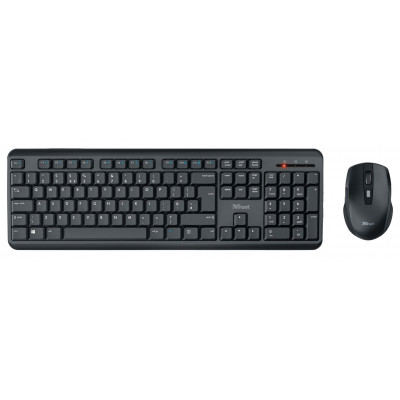
Trust GXT836 Evocx Gaming Keyboard - Black
409/0755

Buy it on Argos.co.uk
 UK:
UK:
 Eire:
Eire:
Product details
- Brand: Trust
- Catalogue number: 409/0755
- Manufacturer's number: 24726
Trust Support
UK:
Eire:
ONLINE SUPPORT ONLY
ONLINE SUPPORT ONLY
Mon-Sun:
Open 24 hours
Email me this page
Enter your email address to have this page emailed to you *
Useful links
Online supportFAQs
If your keyboard is not being detected by the computer, check the following:
- Ensure the cable is plugged into the computer and the keyboard.
- Remove the cable from the USB port, then plug it onto another port.
- Check the cable for any damage.
- If the keyboard has multiple connectivity modes, ensure wired mode has been selected.
If the keyboard connects, but some keys don’t work, try the following:
- Unplug the keyboard cable from the USB port, wait 10 seconds, then reinsert it into a different USB port (avoid using a USB hub).
- Tilt the keyboard upside down and gently shake it.
- Using a Q-tip cotton bud lightly dampened with isopropyl, wipe around the key edges to remove any dried residue and grime.
- If the keycaps are removeable (check the keyboard instruction manual), remove the keycap, clean underneath the area of the keycap, then replace the keycap.
- Re-install the keyboard drivers.
If your keyboard keeps disconnecting or dropping input, try the following:
- Check the Keyboard cable for any damage, which can cause intermittent connection loss.
- Unplug the keyboard cable from the USB port, wait 10 seconds, then reinsert it into a different USB port (avoid using a USB hub).
- Re-install the keyboard drivers.
If keys are sticking on your keyboard, unplug the keyboard from the USB port and try the following:
- Tilt the keyboard upside down and gently shake it.
- Using a Q-tip cotton bud lightly dampened with isopropyl, wipe around the key edges to remove any dried residue and grime.
- If the keycaps are removeable (check the keyboard instruction manual), remove the keycap, clean underneath the area of the keycap, then replace the keycap.
Questions & answers



Returns policy
If you need advice or support for your product, please in the first instance contact the support provider using the number on this support page.
If you still need to return your product then please visit our most up to date returns policy here.